
ARCitISA Installation
Installing Git and Git LFS
Section titled “Installing Git and Git LFS”- Download the Git installer for Windows from https://git-scm.com.
- Open the installer and follow the installation instructions
- During the installation, make sure to include Git LFS (Large File Support)
-
Open a Terminal
-
(Optional, if homebrew is not yet installed:) Install the package manager homebrew via
Terminal window /bin/bash -c "$(curl -fsSL https://raw.githubusercontent.com/Homebrew/install/HEAD/install.sh)" -
Install Git via homebrew with
Terminal window brew install git -
Install Git LFS via homebrew with
Terminal window brew install git-lfs -
Initialize Git LFS via
Terminal window git lfs install
-
Open a Terminal
-
Update the package manager apt via
Terminal window sudo apt update -
Install Git via apt with
Terminal window sudo apt-get install git -
Install Git LFS via apt with
Terminal window sudo apt-get install git-lfs -
Initialize Git LFS via
Terminal window git lfs install
Installing ARCitISA
Section titled “Installing ARCitISA”-
Head to the ARCitISA’s GitHub release page.
-
Under “Assets” download the latest release for Windows (
ARCitISA-x.x.x Setup.exe). -
In Windows Explorer, start
ARCitISA-x.x.x Setup.exeto installARCitISA -
Once started, you see a Windows Defender warning. To proceed, click
More infoand thenRun anyway.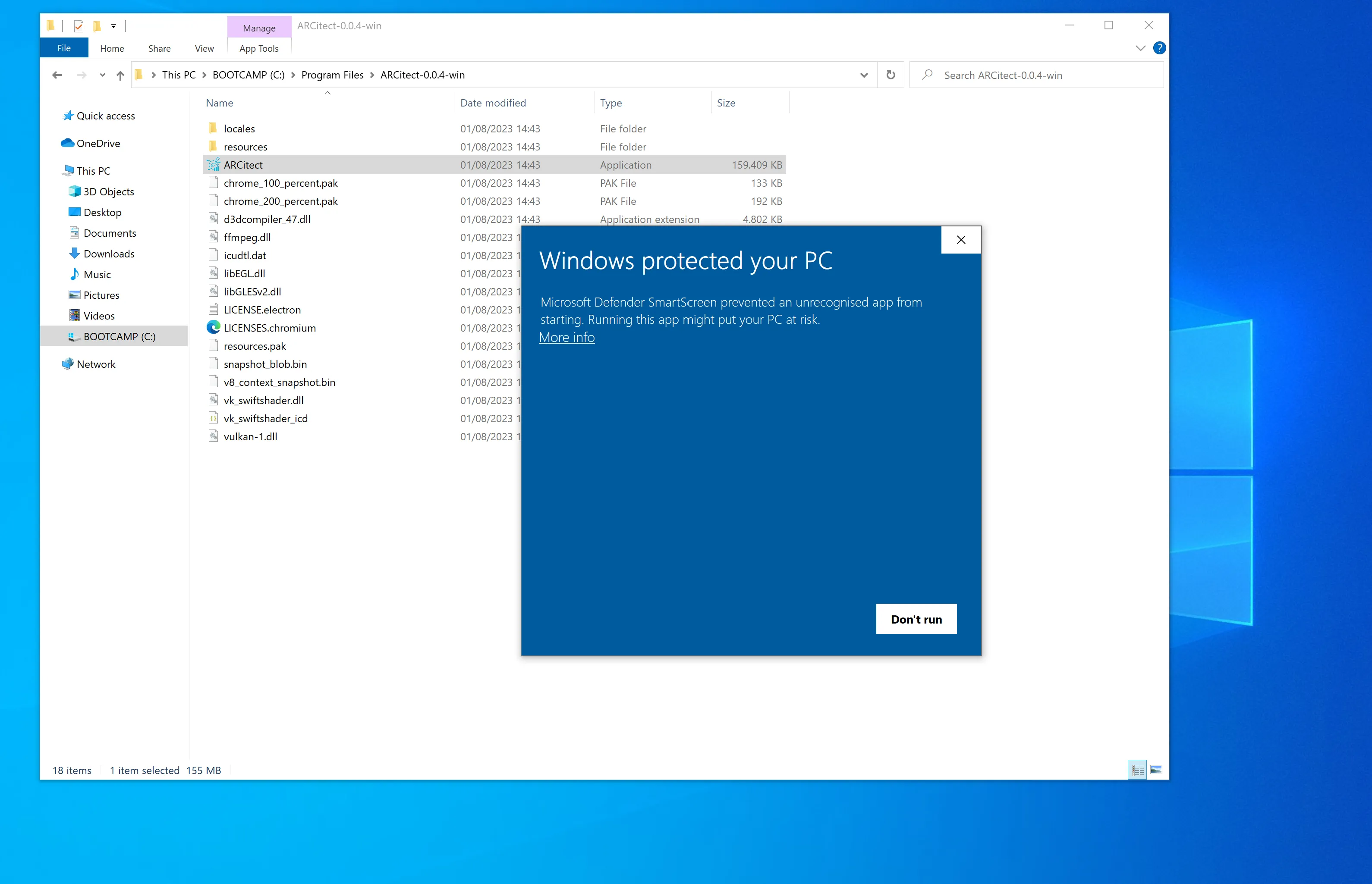
-
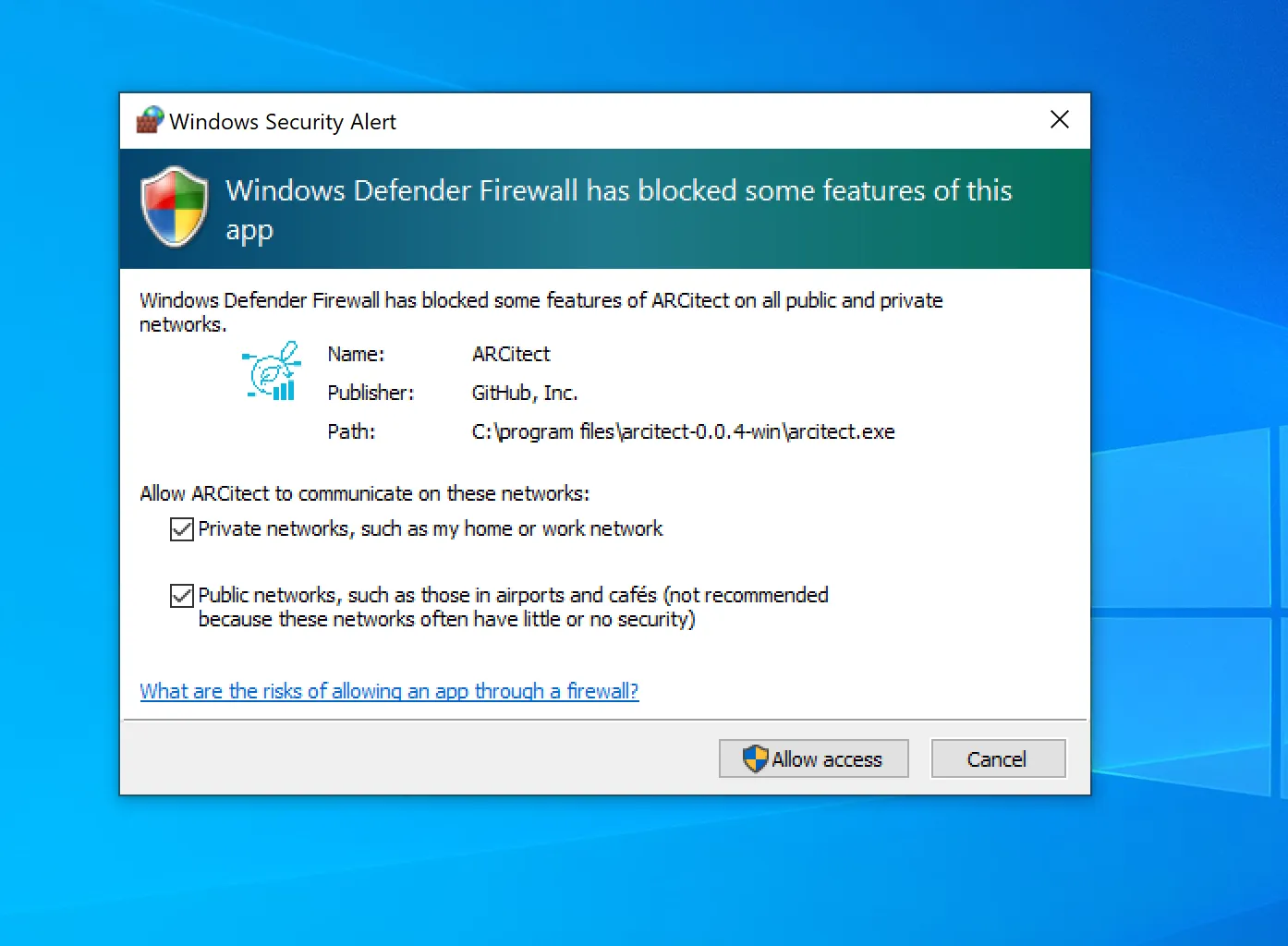
Windows Defender Firewall further asks you to allow network communication. This enables communication with the DataHUB.
-
Head to the ARCitISA’s GitHub release page.
-
Download the macOS installer
ARCitISA-x.x.x.dmgfor your platform (Intel: x64 or Apple Silicon: arm64). -
Double-click the installer
ARCitISA-x.x.x.dmgand move the app to your Applications folder.
Unidentified developer
Section titled “Unidentified developer”When starting ARCitISA for the first time, you are warned about an unidentified developer.
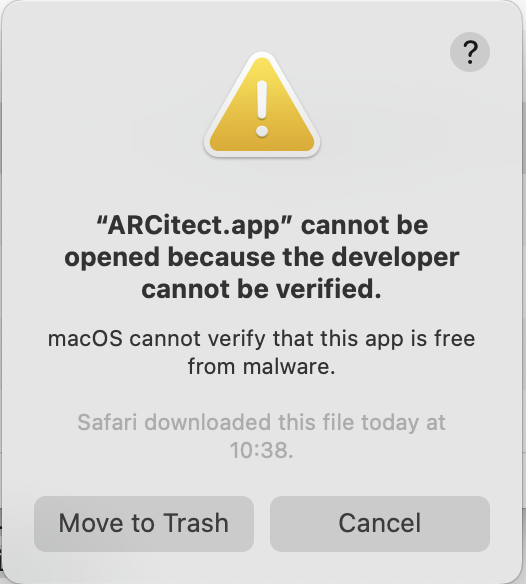
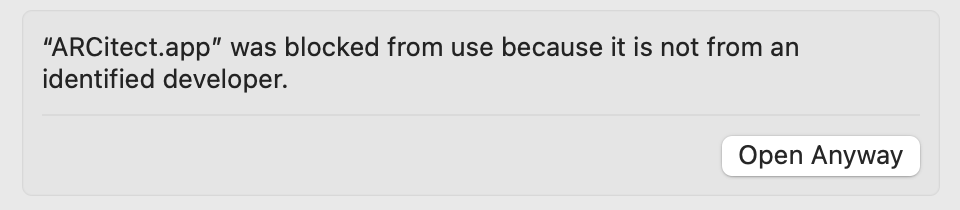
Please navigate to the Privacy & Security panel in your System Settings to Open Anyway.
Accept incoming network connections
Section titled “Accept incoming network connections”Every time you start the ARCitISA, you are asked to accept incoming network connections.
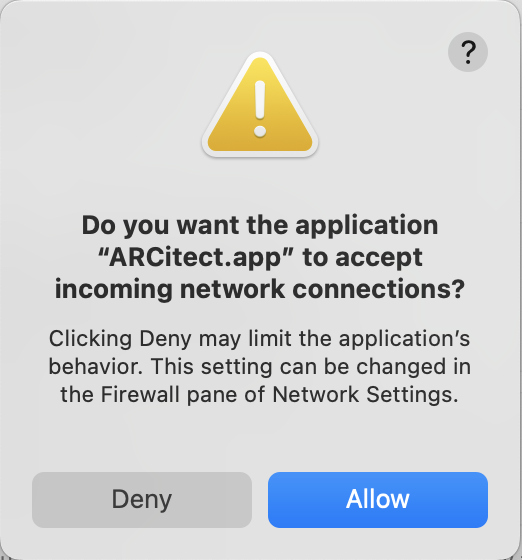
This enables communication with the DataHUB.
-
Install additional dependencies via
Terminal window sudo apt-get updatesudo apt-get install libgtk-3-0 libnotify4 xdg-utils libsecret-1-0 -
Head to the ARCitISA’s GitHub release page.
-
Download the Linux DEB package
ARCitISA-x.x.x_amd64.deb. -
Install ARCitISA
Terminal window sudo dpkg -i ./ARCitISA-x.x.x_amd64.deb -
Start the ARCitISA via
Terminal window arcitisa