
ARC Commander QuickStart
This guide introduces the ARC Commander, a command line tool to create, edit and share you ARC. It requires some experience with the command line (command prompt, shell, terminal,…).
Before using the ARC commander, please install Git, Git-LFS and ARC Commander and setup access to your DataHUB account.
-
Install and setup Git and Git-LFS
Before using ARCitect (except for Windows) or ARC Commander, Git and Git LFS must be installed.
:exclamation: Git versions ≥ 2.52 are not compatible and should not be installed. The highest compatible version is 2.51, which is recommended for installation.
Download and install Git and Git LFS
Section titled “Download and install Git and Git LFS”- Download the Git installer for Windows from https://git-scm.com.
- Open the installer and follow the installation instructions
- During the installation, make sure to include Git LFS (Large File Support)
-
Open a Terminal
-
(Optional, if homebrew is not yet installed:) Install the package manager homebrew via
Terminal window /bin/bash -c "$(curl -fsSL https://raw.githubusercontent.com/Homebrew/install/HEAD/install.sh)" -
Install Git via homebrew with
Terminal window brew install git -
Install Git LFS via homebrew with
Terminal window brew install git-lfs -
Initialize Git LFS via
Terminal window git lfs install
-
Open a Terminal
-
Update the package manager apt via
Terminal window sudo apt update -
Install Git via apt with
Terminal window sudo apt-get install git -
Install Git LFS via apt with
Terminal window sudo apt-get install git-lfs -
Initialize Git LFS via
Terminal window git lfs install
Check your Git installation
Section titled “Check your Git installation”To check, that Git and Git LFS are installed on your computer, open a new command prompt or terminal and execute the following two commands. These should display the installed version. If not, follow the installation instructions.
-
Open a command prompt or terminal
-
Check the installed Git version via
Terminal window git --version -
Check the installed Git LFS version via
Terminal window git-lfs --version
Configure Git User
Section titled “Configure Git User”Git always signs “commits” with a user
nameande-mail address. These are then also used by the DataHUB to associate the commits to your user account.To add your user name and email address to the git configuration on your computer, run the following two commands in a command prompt or terminal. Make sure to replace “Your DataHUB Name” and “Your DataHUB Email Address” with your information from the DataHUB.
- Your name
Terminal window git config --global user.name "Your DataHUB Name"- Your email address
Terminal window git config --global user.email "Your DataHUB Email Address"Check your Git configuration
Section titled “Check your Git configuration”Run this command to display your user configuration
Terminal window git config --global --get-regexp userEnable Git to store credentials on your computer
Section titled “Enable Git to store credentials on your computer”To avoid having to type in your DataHUB credentials, you can enable to store the information (e.g. a DataHUB password or token) on your computer. This leverages the password manager of you operating system.
-
Open a command prompt or powershell
-
Execute the following command
Terminal window git config --global credential.helper store
-
Open a terminal
-
Execute the following command
Terminal window git config --global credential.helper osxkeychain
-
Open a terminal
-
Execute the following command
Terminal window git config --global credential.helper store
-
Install ARC Commander
Head to the ARC Commander’s GitHub release page. Download the newest release for your operating system (OS) and follow the instructions for your OS listed below.
Head to the ARC Commander’s GitHub release page. Download the newest release for Windows.
-
In Windows Explorer, head over to the folder where you downloaded the ARC Commander, e.g.

-
You can move the .exe to a desired folder, e.g. to your personal folder
-
Add the folder with the ARC Commander to your PATH:
- Open the Start Menu, type in
pathand click on Edit the system environment variables
- Click on Environment Variables…, click on Path and on Edit… in the tab User variables for <your username>, click on New and type in the full path to your folder as seen in the example below:

- This allows you to start the ARC Commander from any folder
- Please make sure that you do not have any blank spaces in your path
- Open the Start Menu, type in
-
Navigate to a folder in which you want to initialize an ARC
-
Open the Command Prompt (CMD) via typing in
cmdin the folder address, press Enter
-
Run the ARC Commander from the CMD by executing
arc -
Done! 🎉
-
Open a Terminal (Applications -> Utilities -> Terminal)
-
Copy/paste the following commands into your terminal and execute them to (a) download the latest ARC Commander release, (b) change permissions to make the ARC Commander executable and (c) move the ARC Commander program to a location from where it is executable via the terminal:
First, you need to verify if your machine is using an AMD / x86 processor or ARM processor.
Terminal window uname -mThis command will return the processor type. If it returns x86_64 , your system is x86. If it returns arm64 , armv7l , or similar, it is ARM.
For AMD / x86 processors
Terminal window curl -LO https://github.com/nfdi4plants/ARCCommander/releases/download/v1.0.2/arc_osx-x64chmod a+x ./arc_osx-x64mv ./arc_osx-x64 /usr/local/bin/arcFor ARM processors
Terminal window curl -LO https://github.com/nfdi4plants/ARCCommander/releases/download/v1.0.2/arc_osx-arm64chmod a+x ./arc_osx-arm64mv ./arc_osx-arm64 /usr/local/bin/arc -
Run ARC Commander from the terminal by executing:
Terminal window arc -
MacOS security note: On first execution, MacOS will not allow arc to be run. Instead it opens a pop-up:
> "arc" cannot be opened because it is from an unidentified developer -
Open the Security Panel in system Preferences (Applications -> System Preferences -> “Security & Privacy”) or by executing the following command in your terminal:
Terminal window open "x-apple.systempreferences:com.apple.preference.security"In the “General” tab click the bottom-right button “Allow Anyway” right next to
> arc was blocked from use because it is not from an identified developer. -
Head back to the terminal and execute
arcagain. Another pop-up will ask you to confirm by clicking “Open”. -
Check that arc is properly installed by executing
Terminal window arc --versionYou should see the following or similar message:
> Start processing parameterless command.> Start Arc Version> v1.0.0> Done processing command.
-
Download the latest ARC Commander release
Terminal window wget https://github.com/nfdi4plants/ARCCommander/releases/download/v1.0.0/arc_linux-x64 -
Make it executable
Terminal window chmod u+x arc_linux-x64 -
Move to suitable place (e.g. in your home directory or to
/home/bin/to make it accessible for all users)Terminal window if ! [ -d "$HOME/bin" ]; then mkdir "$HOME/bin"; fi # If it does not exist, create a folder `bin` in your home directory.mv arc_linux-x64 $HOME/bin/arc # move executable to that folder -
You might have to start a fresh terminal or
source ~/.profile -
Test that ARC Commander is properly installed
Terminal window arc --versionYou should see the following or similar message:
> Start processing parameterless command.> Start Arc Version> v1.0.0> Done processing command.
-
-
Register for a DataPLANT account
With a DataPLANT account you can use the DataHUB and share your ARC for collaboration.
Registration
Section titled “Registration”Please register here.
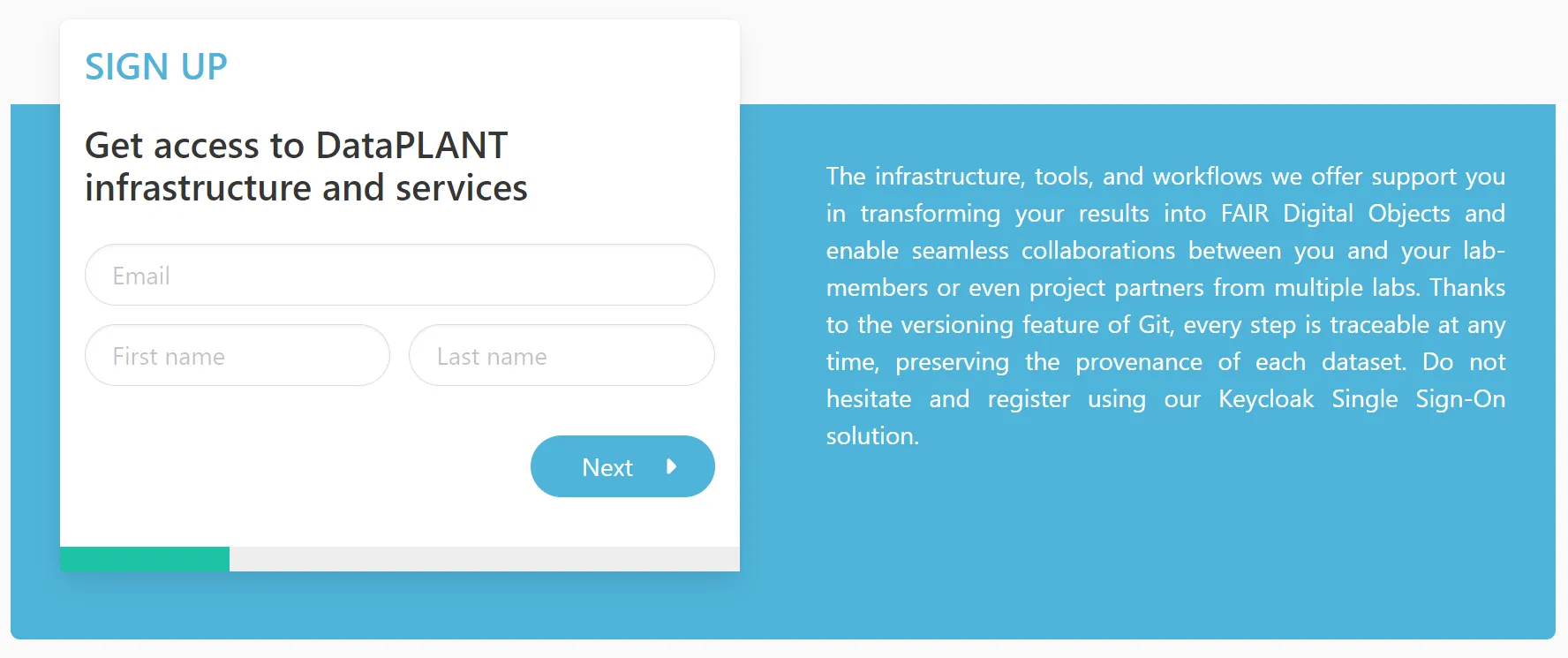
DataPLANT roles
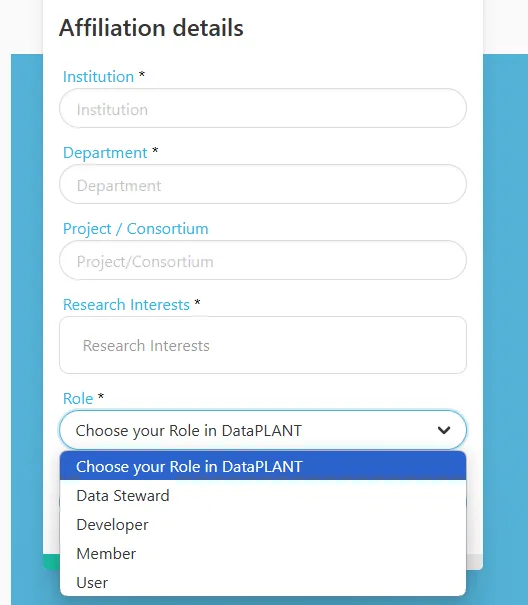
Section titled “DataPLANT roles”During the registration you can “Choose your role in DataPLANT”:
- DataSteward
- Member of / associated to DataPLANT
- Teaches DataPLANT tools and services to community members
- Developer
- Member of / associated to DataPLANT
- Develops DataPLANT tools and services
- Member
- Other member of DataPLANT
- User
- User who want to use the DataPLANT tools and services
DataPLANT account settings
Section titled “DataPLANT account settings”If you want to adjust your account settings, simply click the login icon in the navigation bar on this site.
- In the tab “Password” you can modify your password.
- In the tab “Authenticator” you can set up Two Factor Authentication (2FA).
- DataSteward
-
Setup DataHUB access
The DataHUB allows you to share your ARCs with registered lab or project partners. After registration, you need to setup the ARC Commander for smooth ARC synchronization between your computer and the DataHUB.
Enable Git to store credentials on your computer
Section titled “Enable Git to store credentials on your computer”To avoid having to type in your DataHUB credentials, you can enable to store the information (e.g. a DataHUB password or token) on your computer. This leverages the password manager of you operating system.
-
Open a command prompt or powershell
-
Execute the following command
Terminal window git config --global credential.helper store
-
Open a terminal
-
Execute the following command
Terminal window git config --global credential.helper osxkeychain
-
Open a terminal
-
Execute the following command
Terminal window git config --global credential.helper store
Receive and store a DataHUB access token
Section titled “Receive and store a DataHUB access token”Terminal window arc remote accesstoken get -s https://git.nfdi4plants.orgA browser window will open asking for your DataPLANT login. After login you are asked to authorize your computer to communicate with the DataHUB. In case you are already logged in, the browser will directly display a plain
Successmessage to you.Store a configurable DataHUB access token for your project
Section titled “Store a configurable DataHUB access token for your project”Access tokens created with the ARCommander expire after two hours. To create a longer-lasting access token for your project, follow these steps:
-
Create a project access token
-
Sign in to the DataHUB
-
Open your Project (ARC)
-
Navigate to the ARC’s settings
-
Open the
Access Tokenssettings in the sidebar(1) -
Enter or adapt the required token information
(2)(more about token information here) -
Click
Create project access token (3)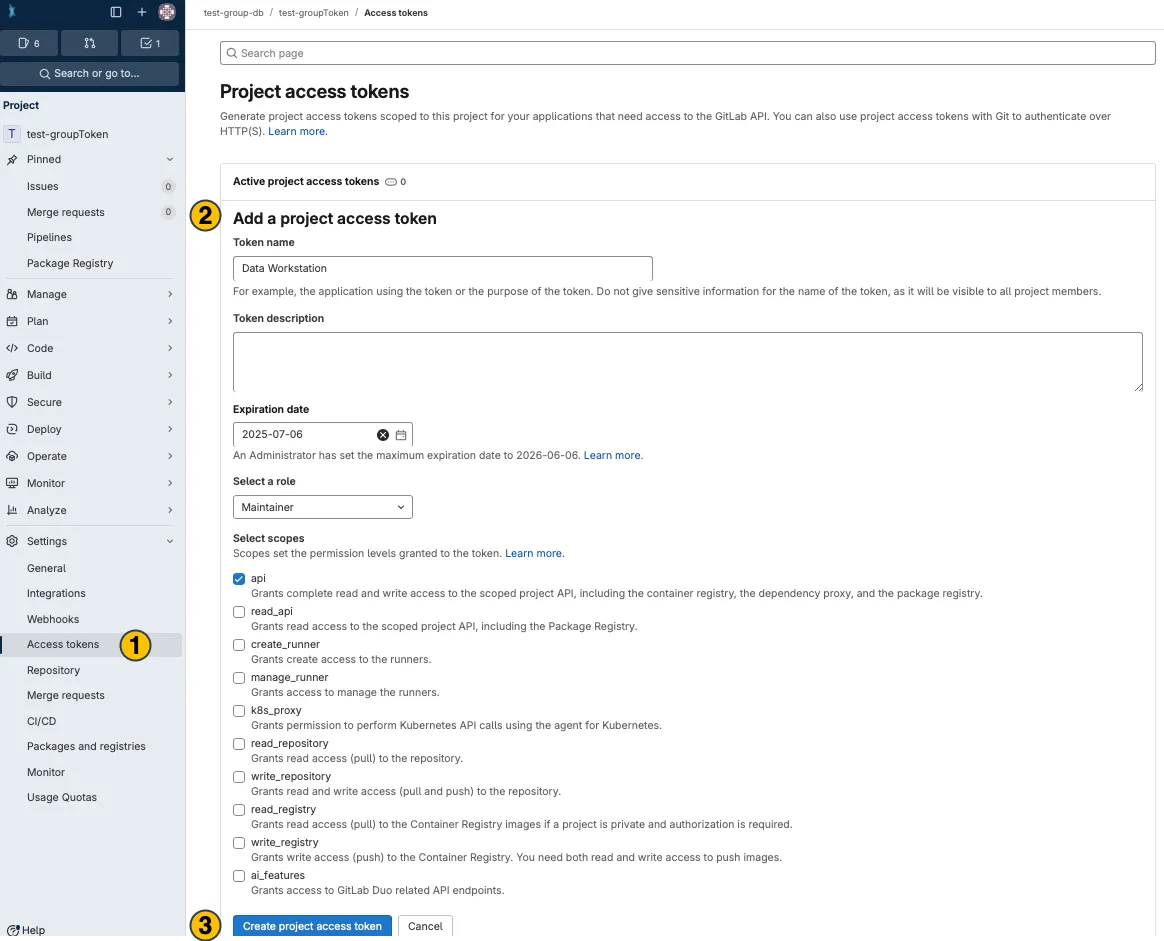
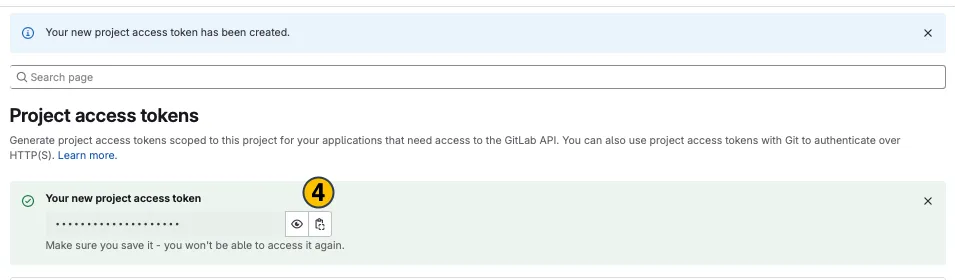
-
Your new project access token appears on top. Copy (4) and use it in the desired application.
-
-
Store the token in your local ARC
Terminal window arc remoteaccess accesstoken store --token <replaceWithYourToken>
Once set up, you will not need to authenticate yourself (e.g., by manually retrieving a token through ‘arc remote token get’) until the token expires. When switching to another machine you have to repeat the process.
-
Initialize your ARC
Section titled “Initialize your ARC”-
Create and navigate to a local folder, which you want to initialize as an ARC, e.g. via file explorer or
Terminal window mkdir AthalianaColdStressSugarcd AthalianaColdStressSugar -
Initialize your ARC by executing
Terminal window arc init
This created the general ARC folder structure:
- studies
- assays
- workflows
- runs
- isa.investigation.xlsx
Add investigation metadata
Section titled “Add investigation metadata”-
Add an investigation identifier (
-ior--investigationidentifier)Terminal window arc investigation update -i AthalianaColdStressSugar -
Add a Title
Terminal window arc investigation --title "Arabidopsis thaliana cold acclimation" -
Add a Description
Terminal window arc i --description "This experiment investigates the response of Arabidopsis thaliana to cold stress by subjecting plants to low-temperature conditions and monitoring physiological, molecular, and growth-related changes. Cold-treated plants are compared with control groups grown under optimal conditions to assess stress-related markers such as changes in protein abundance, sugar content, and growth rates. The goal is to identify key molecules and physiological responses involved in cold tolerance, contributing to the understanding of plant stress adaptation mechanisms." -
Add Contacts
Terminal window arc i person register -f Jasmine -l Beetrootarc i person register -f Oliver -l Sagearc i person register -f Viola -l Canina --email viola@plantscience.xyz
Add studies and assays
Section titled “Add studies and assays”-
Add a study with an identifier (
-s,--assayidentifier)Terminal window arc study add -s AthalianaColdStress -
Add assays with an identifier (
-a,--assay)Terminal window arc assay add -s AthalianaColdStress -a SugarMeasurementarc assay add -s AthalianaColdStress -a Proteomics_MSarc assay add -s AthalianaColdStress -a Proteomics_DataAnalysis
The ARC Commander will add subdirectories to the studies and assays folders. Your ARC should look similar to this now:
Directorystudies
DirectoryAthalianaColdStress
- resources
- protocols
- isa.study.xlsx
- …
Directoryassays
DirectorySugarMeasurement
- dataset
- protocols
- isa.assay.xlsx
- …
Directoryworkflows
- …
Directoryruns
- …
- isa.investigation.xlsx
Sync with the DataHUB
Section titled “Sync with the DataHUB”-
Synchronize your ARCs with the DataHUB using the command
Terminal window arc sync -
If you did not connect your local ARC with a remote one so far, you can specify the remote address (
-ror--remote) followed by the DataHUB URL, e.g.,Terminal window arc sync -r https://git.nfdi4plants.org/<YourUserName>/<YourARC> -
If no ARC exists under the given URL, you can force (
-for--force) the ARC Commander to create it.Terminal window arc sync -f -
Check if the upload was successful by visiting your ARC at the respective URL in your browser.
Seeking help
Section titled “Seeking help”The ARC Commander comes with a leveled help menu, that suggests suitable inputs on every level of command or subcommand. You can simply add -h or --help at the end of an ARC Commander action to display the respective help menu.
Some examples:
arc --helparc investigation --harc investigation create --helparc study --harc study add --helparc assay remove --helpWhat’s next?
Section titled “What’s next?”Here we only introduced the basic functions. After concluding this quickstart, you might want to explore the ARC Commander manual for a more detailed usage instruction.
In order to annotate the data in your ARC, explore the sections on studies and assays in the Getting Started guide. You can do this with ARCitect or Swate.